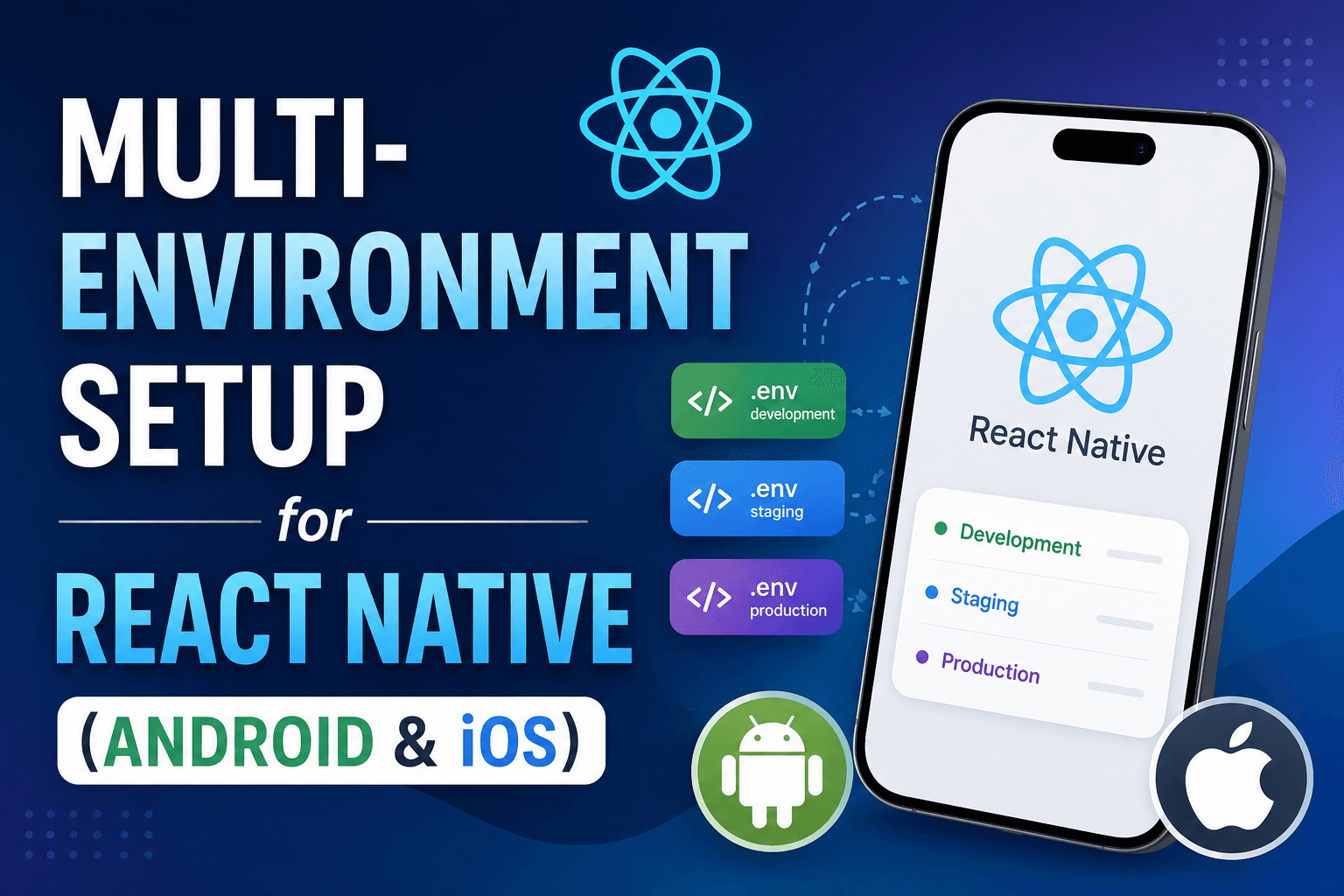
This guide documents how to support multiple API environments (schemas) and multiple installable apps (flavors) on the same React Native codebase — including optional different app icons per flavor.
According to recent development trends, over 68% of enterprise React Native applications utilize multi-environment setups to securely separate production data from staging environments, reducing the risk of accidental data corruption during testing.
Note: This setup was tested on React Native version 0.80.3. While this will be the standard flow for most versions, there may be minor changes required in other versions (e.g., changes to CLI flags or Gradle syntax).
Concepts
Schema / `APP_ENV`: Which `.env.*` file is baked into JS at build time (`development`, `staging`, `production`). Controls API URLs, storage keys, etc.
Flavor: Native app variant with its own bundle ID, allowing separate installs on a device.
- Internal app: Non-production install. Uses dev and staging APIs via `APP_ENV`.
- Production app: Store install. Always uses production APIs.
Architecture Overview
The architecture relies on `react-native-dotenv` at the JS layer to cache environment variables based on `APP_ENV`. On Android, product flavors separate the internal and production builds. On iOS, different schemes and build configurations achieve the same separation.
Step 1 — Environment Files
Create one file per environment, such as `.env`, `.env.staging`, and `.env.production`. Use different storage keys per environment so tokens do not leak between dev/staging/prod on the same device.
BUILD_TYPE=development
BASE_URL=http://localhost:8000/api/
API_URL=http://localhost:4000
USER_STORAGE_KEY=@myapp:dev:user
USER_TOKEN_STORAGE_KEY=@myapp:dev:token
Step 2 — Babel Configuration
Update `babel.config.js` to use `api.cache.using(() => process.env.APP_ENV ?? 'development')` and configure the `react-native-dotenv` plugin.
module.exports = function (api) {
  api.cache.using(() => process.env.APP_ENV ?? 'development');
  return {
    presets: ['module:@react-native/babel-preset'],
    plugins: [
      [
        'module:react-native-dotenv',
        {
          envName: 'APP_ENV',
          moduleName: '@env',
          path: '.env',
        },
      ],
    ],
  };
};
Step 3 — Native Configuration
For Android, edit `android/app/build.gradle` to add `flavorDimensions "environment"` and configure `internal` and `production` product flavors.
android {
    flavorDimensions "environment"
    productFlavors {
        internal {
            dimension "environment"
            applicationId "com.example.app.internal"
            resValue "string", "app_name", "App Internal"
        }
        production {
            dimension "environment"
            applicationId "com.example.app"
            resValue "string", "app_name", "App"
        }
    }
}
For iOS, duplicate configurations for Internal-Debug/Release, update the Podfile mapping, and create dedicated shared schemes (e.g. App-Internal and App-Production).
Step 4 — Interactive Run Scripts
To make running the project easier, wrap default commands so the team can pick the flavor/schema interactively using bash scripts.
Here is an example scripts/prompt-flavor.sh script you can use to prompt developers for the environment and flavor:
#!/bin/bash
# scripts/prompt-flavor.sh

echo "Select Environment:"
select env in "Development" "Staging" "Production"; do
    case $env in
        Development ) APP_ENV="development"; break;;
        Staging ) APP_ENV="staging"; break;;
        Production ) APP_ENV="production"; break;;
    esac
done

echo "Select Flavor:"
select flavor in "Internal" "Production"; do
    case $flavor in
        Internal ) FLAVOR="internal"; break;;
        Production ) FLAVOR="production"; break;;
    esac
done

echo "Starting Metro with APP_ENV=$APP_ENV..."
export APP_ENV
export FLAVOR
Explicit non-interactive scripts can also be added to `package.json` for CI environments (e.g., `APP_ENV=staging FLAVOR=internal yarn android`).
Step 5 — Different App Icons (Optional)
You can keep production icons as they are and override them for internal builds to easily distinguish the apps on a single device.
- Android: Place PNGs under `android/app/src/internal/res/mipmap-*` and update `ic_launcher.xml`.
- iOS: Add an `AppIcon-Internal.appiconset` in Xcode and set `ASSETCATALOG_COMPILER_APPICON_NAME = AppIcon-Internal` on the internal configurations.
Bonus: AI Prompt for Multi-Environment Setup
If you want to replicate this setup on your own React Native project, simply copy the prompt below and paste it into your favorite AI coding assistant (like Cursor, Claude, or GitHub Copilot):
Implement multi-environment support for my React Native application.

**Project context**
- React Native version: 0.80.3 (adjust if my package.json differs)
- Package manager: yarn
- Env injection: react-native-dotenv with APP_ENV
- Platforms: Android + iOS

**Goals**
1. Two installable apps side-by-side on the same device:
   - Internal: bundle ID `{BUNDLE_ID}.internal`, display name "{App Name} Internal"
   - Production: bundle ID `{BUNDLE_ID}`, display name "{App Name}"
2. Three JS schemas via APP_ENV:
   - development → .env (localhost)
   - staging → .env.staging (test API)
   - production → .env.production (live API)

**Android**
- Add product flavors `internal` and `production` in android/app/build.gradle
- Set debuggableVariants = ["internalDebug", "productionDebug"]
- Different applicationId and resValue app_name per flavor

**iOS**
- Add build configurations Internal-Debug, Internal-Release
- Update Podfile project mapping for new configurations
- Create schemes {App}-Internal and {App}-Production

**JS / tooling**
- babel.config.js: api.cache.using(() => process.env.APP_ENV ?? 'development')
- .env.example documenting all keys (separate USER_STORAGE_KEY per env)